Requisitions
A requisition is a formal request for materials or services, commonly used in business, procurement, or supply chain management. It initiates the process of acquiring what is needed for a task or project.
Overview
In the CBOS environment, the requisition window allows users to specify details such as Product, Unit of Measure (UOM), Quantity, and additional descriptions. Once the document is completed, it remains editable until processed. Afterward, users confirm the fulfillment type, add any further necessary data, and run the "Process Requisition" action to generate the corresponding document—either a Purchase Order (PO), Inventory Move, or Internal Use Inventory, depending on the fulfillment type chosen for each line. After processing, the document becomes non-editable.
How to Add a Requisition
Path: System Menu → Requisition
Steps:
- Create a New Requisition
- Click the +New button to start a new requisition record.
- Complete the Header Information
- Enter the necessary details in the header:

- Priority: Select the priority level (default is "Medium," but can be changed).
- Deliver by Date: Set the due date (auto-populates with today's date but can be modified).
- Description: Optionally add a description of the requisition.
- Document No.: Add a document number, leave blank to auto-generate a document number.
- Document Date: Auto-populates with today’s date (modifiable).
- Press the Save button.
- Add Requisition Line Items
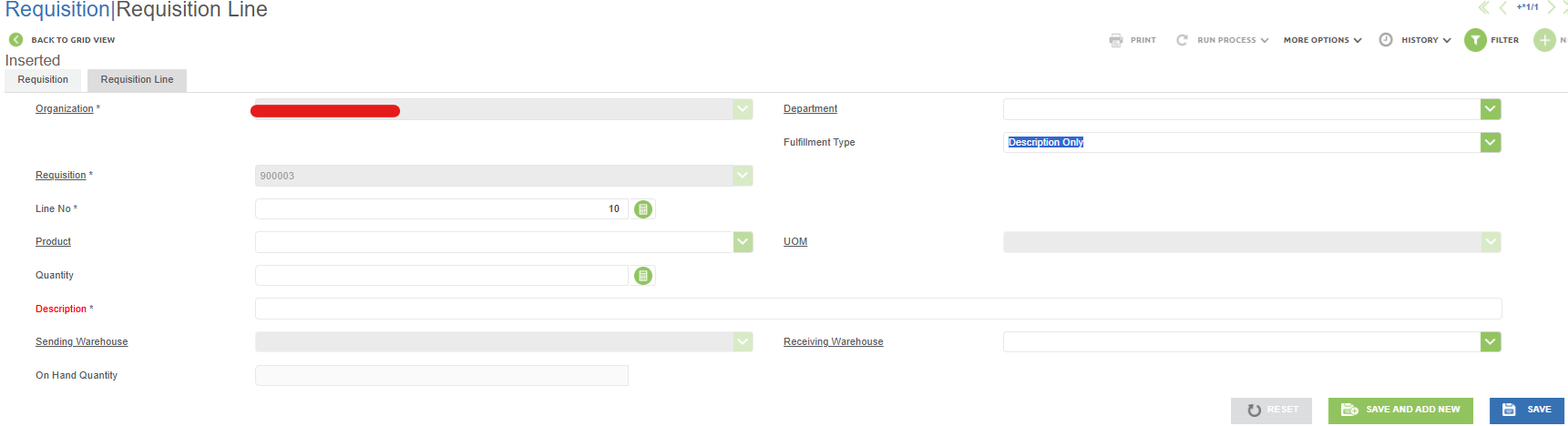
- Navigate to the Requisition Line tab and click +New to add items to the requisition.

- Complete the Requisition Line Information
- Description Only: Requires a description. Quantity and receiving warehouse fields are optional.
The fields required will change based on the Fulfillment Type selected. Options include:
- (Note: "Description Only" lines cannot be processed. The fulfillment type must be changed before processing.)

- Internal Use Inventory: Requires department, product, UOM, charge, quantity, and sending warehouse. The description field is optional.
A charge with the charge type “Requisition” needs to be set up before attempting to create an Internal Use Inventory requisition. Please refer to the following documentation for instructions on how to create a charge: How to Set Up Charges
(Note: The Internal Use Inventory applies only to products classified as "Item." Attempting to use it with other product types will result in an error.)

- Inventory Move: Requires product, UOM, quantity, sending warehouse, and receiving warehouse. Department and description are optional.
(Note: The Inventory Move applies only to products classified as "Item." Attempting to use it with other product types will result in an error.)

- Purchase Order: Requires product, UOM, quantity, and receiving warehouse. Department and description are optional.
(Note: A purchasing vendor must be defined in the product settings for successful processing.)

- No Selection: The user must specify the product, UOM, and quantity. Other fields are optional.

- Save Line Information
Click Save to finalize the requisition line, or use Save and Add New to add another line.
- Complete the Requisition
- Review and Processing
- Confirmation
- Target Documents




Once all lines are added, return to the header and click the Document Action button. Select Complete and confirm by clicking the checkmark. The requisition status will change from "Drafted" to "Completed.


After reviewing, to process the requisition, click Run Process → Process Requisition, and confirm by clicking the checkmark. This action finalizes the requisition and generates the corresponding documents. Once processed, the requisition is no longer editable.

If the requisition was successfully processed, a pop-window will show up on the screen which indicates the document created. In the following example, the requisition contained one line of inventory move, thus the confirmation message shows that an inventory move with the document number “610002” has been created:

If the process fails, an Excel file with error details will automatically download.
Depending on the fulfillment type, processing the requisition will create one or more of the following documents:
- Purchase Order: If Purchase Order was selected on at least one of the requisition lines, the system will create a purchase order in drafted status that can be reviewed and completed in the Purchase Orders window.
- Internal Use Inventory: If Internal Use Inventory was selected on at least one of the requisition lines, the system will create an internal use inventory document in drafted status that can be reviewed and completed in the Internal Use Inventory window.
- Inventory Move: If Inventory Move was selected on at least one of the requisition lines, the system will create an inventory move document in drafted status that can be reviewed and completed in the Inventory Move window.
Useful Functions
- Copy with Lines: This function, found under "More Options," allows you to copy requisitions with lines, ideal for templates where only quantities change.
- Print: Requisitions can be printed after they are completed by clicking the Print icon.
- Print Target Document: After processing, the target documents can be printed by navigating to History → Related Transactions → and selecting the desired document from the top-left pop-up bar.