Pay Statements
Generating One Pay Statement
- Human Resources > Payroll Data > Payroll Data
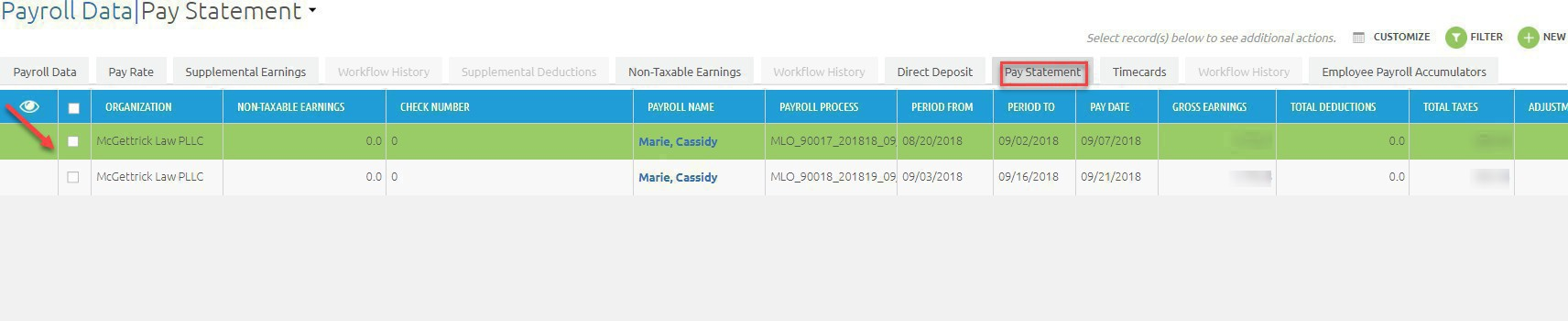
- Click Pay Statement tab
- Highlight pay statement you want to view (if you do not highlight the pay statement the Run Process button will not generate at the top)
- Click Run Process
- Click Print Pay Statement
- Click Green check mark to start the process
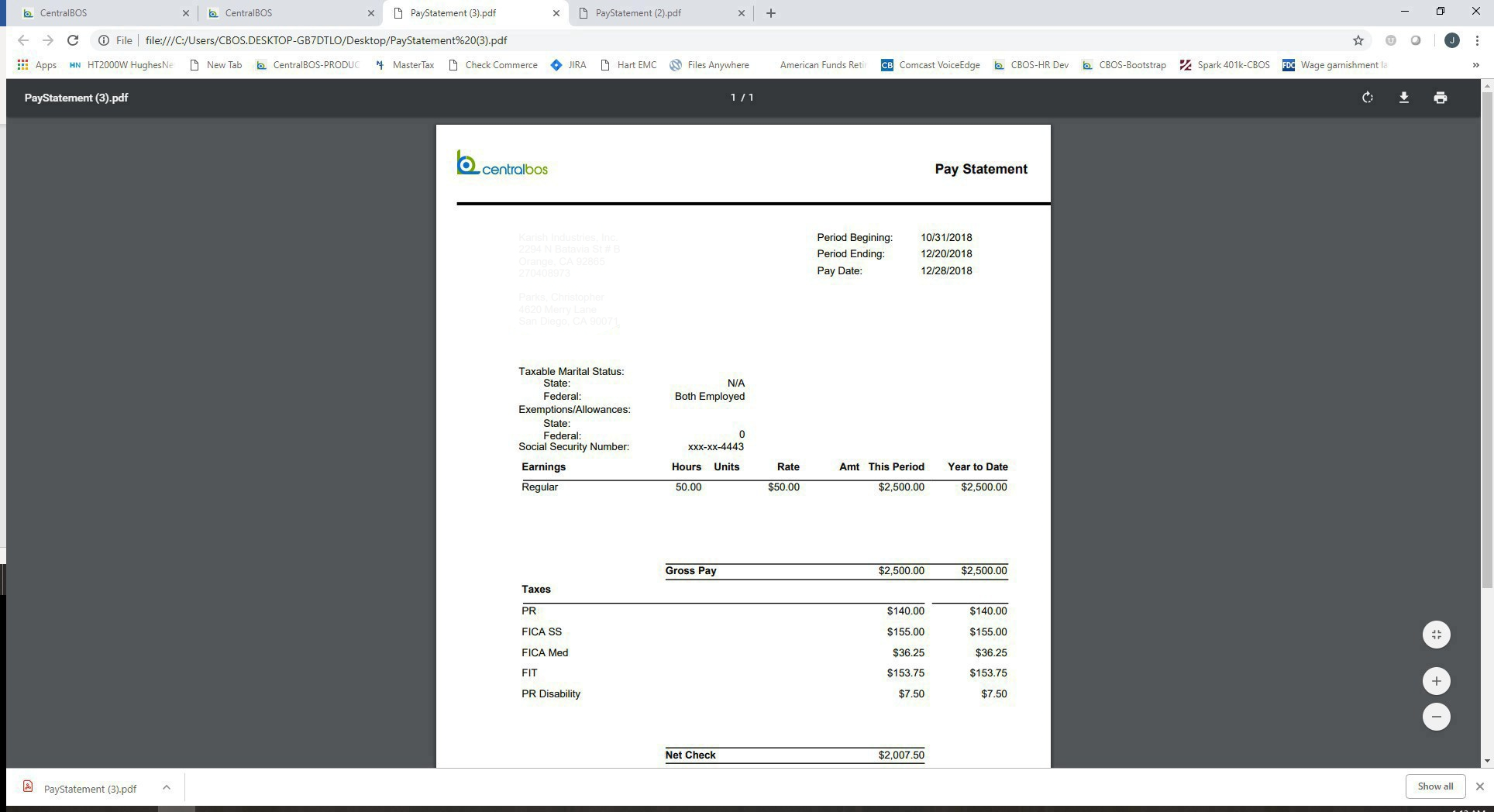
- Pay statement will generate

Generating Multiple Pay Statements
- Human Resources > Payroll Data > Payroll Data
- Click Pay Statement tab
- Check the boxes of the pay statements that need to be generated
- Click Run Process
- Click Print Pay Statement
- Click green checkmark to start the process
- Pay statements will generate
Generating via Reports
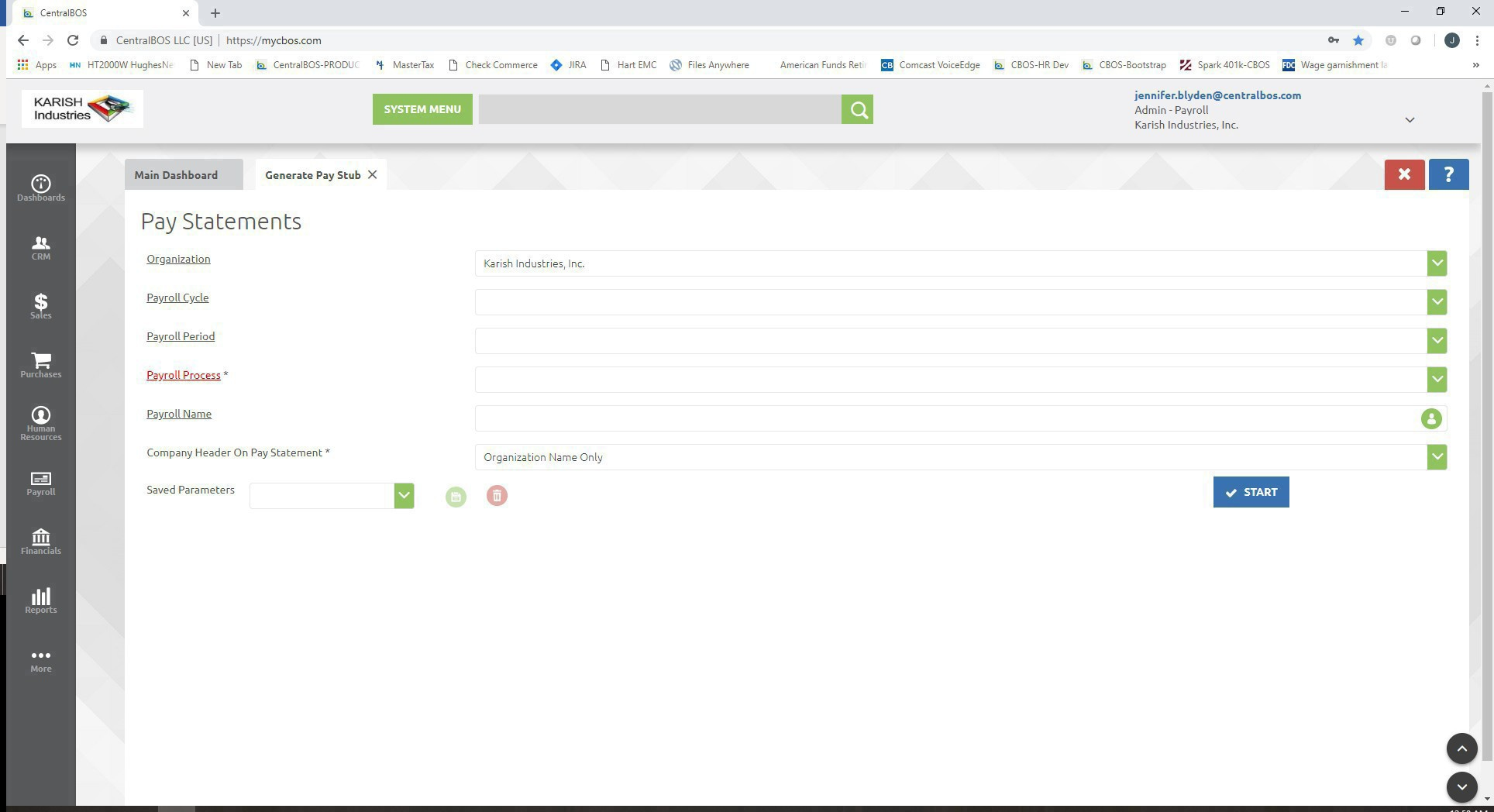
- Payroll Action Reports > Generate Pay statements
- Select Organization
- Select Payroll Period
- Select Payroll Process (will populate based on payroll period selected)
- Enter employee name in payroll name field if generating pay statement for one employee. To generate all employee’s pay statement, leave this field blank
- Select how company header should display on pay statement from dropdown menu
- Click Start
- Pay statements will generate