Using CRM
The CRM (Customer Relationship Management) module has two primary purposes:
- To help you obtain customers and keep track of those sales-related activities
- To keep track of your customers and any interactions that you have with them
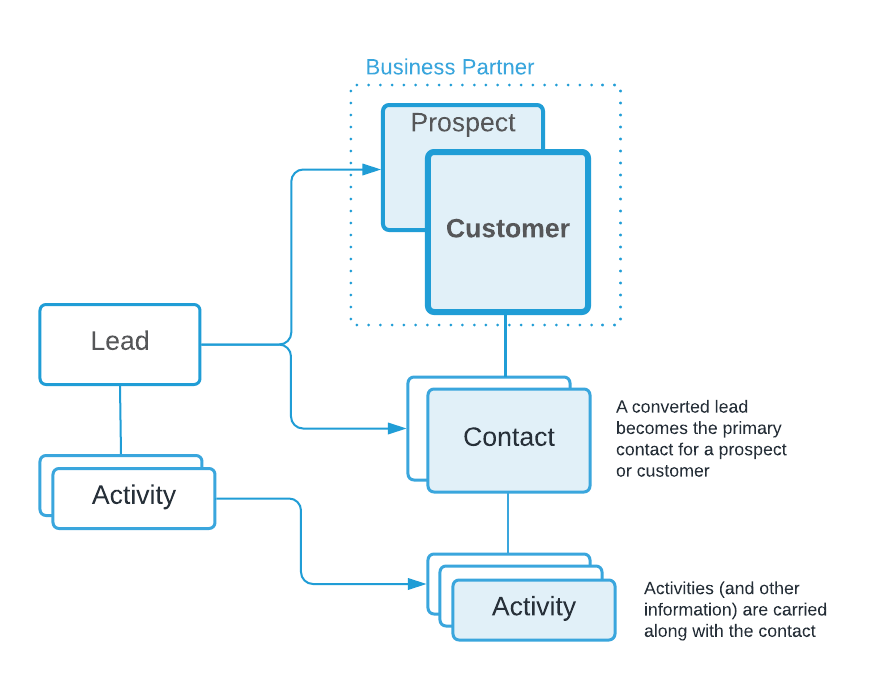
The sales process uses three primary entities: Leads, Prospects and Customers. A lead is an individual contact, such as a referral or a name obtained from an advertising campaign. Leads can have Activities associated with them. Activities are records where you would keep track of interactions with a person, such as emails or phone calls.
How to Enter a Prospect Video 
If a lead has a strong possibility of becoming a customer, they can be converted to a prospect. This will allow you to add additional contacts and other information about the potential customer, and allow you to issue quotations. A lead may also be converted directly to a customer. In either case, the information that has been entered is preserved, and becomes associated with the new entity.
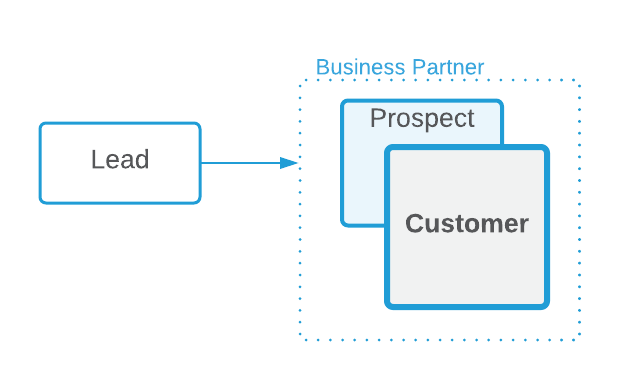
Contacts are individuals that work for a business partner-- in this case, either a prospect or a customer. Each business partner must have at least one contact, but may have many. If a lead is converted to a prospect or customer, they become the primary contact for that new entity. Any activities recorded for that lead will be carried along as well-- along with any other information that has been entered.
Entering Leads
How to Enter Leads Video
Leads are entered using the standard method, by selecting the grid view (from the side menu, CRM > Leads), and using the + New button to create a new line. You will note that leads have a limited number of fields. They are essentially a contact-- in fact, if a Lead is converted to a Prospect or Customer, the info in the lead record becomes the primary contact for those entities.
The only required field for a lead is email address, indicated by the red text and asterisk in the edit view as shown below:

The Lead Status and Lead Source drop-down fields are not required, but can be helpful for keeping track of progress and grouping leads for action, especially in cases where there may be a large list.
Importing Leads
A list of leads can be imported by selecting MORE OPTIONS > Import. (For more information, see Importing.)
Adding an Activity
Activities are the method used for tracking any sort of contact or action taken in regards to the lead. To enter an Activity, from the grid view, select the Lead record that you are working with, and then click on the Activity tab. Select the Activity type, then enter the information as desired.
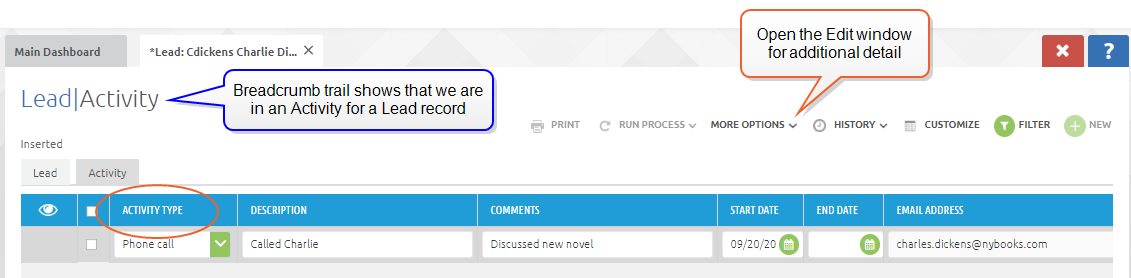
The time of the entry and the person who made the entry are recorded within the Lead record.
New Activity records are added in the usual way by selecting the + New button.
Note that the COMMENTS field allows for a very large amount of text, for instance pasting in the contents of an email. Remember that if you wish to view the full contents of the field, open the full edit window by using the MORE OPTIONS drop-down.

Converting Leads to Prospects
When a Lead has shown a strong interest you may wish to convert the Lead into a Prospect record.
Some reasons that you might want to use Prospect records include:
- A way to separate out likely customers from Leads
- The ability to add and track interactions with additional contacts
- Availability of additional information fields such as Dun & Bradstreet number, NAIC industry code and many others
- The ability to create a related Sales Opportunity (described in more detail below)
To perform the conversion process, select the record that you wish to convert, and use the RUN PROCESS menu.

The Convert to Prospect dialog offers the optional opportunity to create an associated Sales Opportunity, and all of the fields on the dialog apply to that. For this first example, we will not be creating a Sales Opportunity, so we will not fill in any additional data. (For more information see Sales Opportunities.)

After clicking the check mark, the lead is no longer visible in the Leads grid view, and instead is now visible in CRM > Prospects.
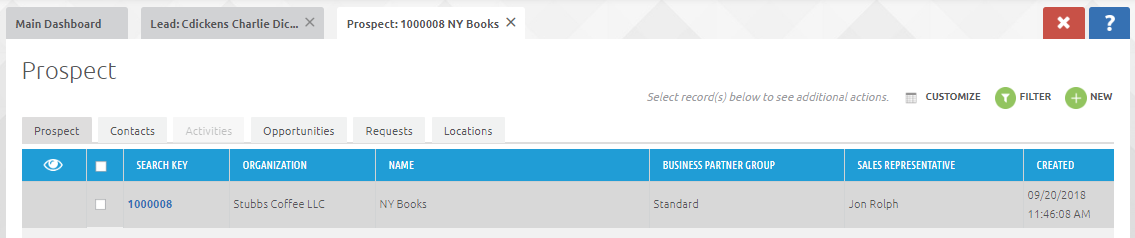
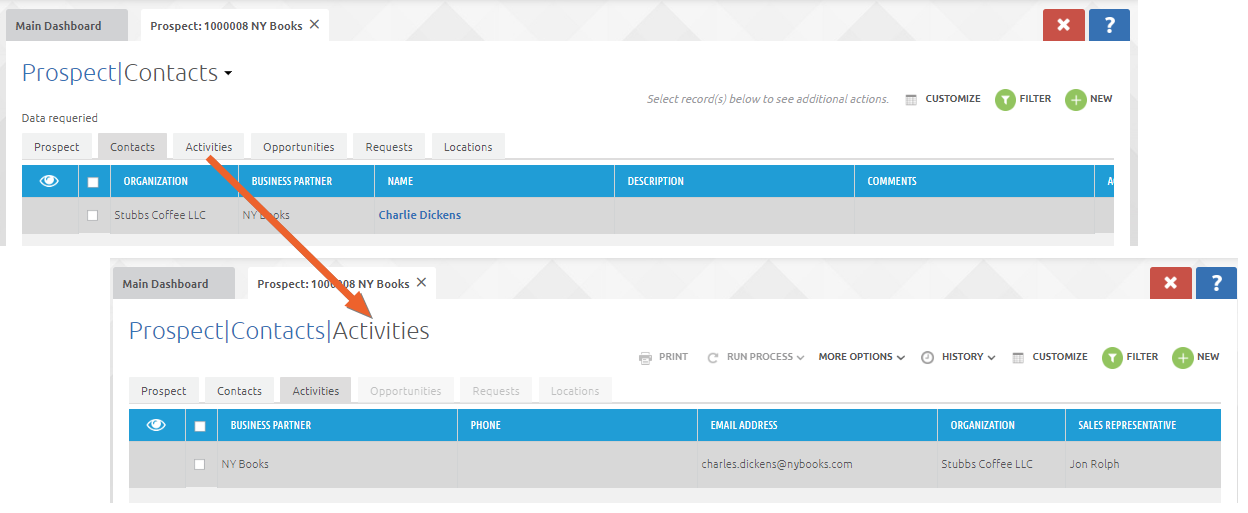
By selecting the Contacts tab, we have access to the Activity records for Contact Charlie Dickens. By clicking on the Activities tab, we can see that the Activity that was entered on the Lead record has remained. This is the case with all conversions: Records that you enter at one stage will be retained.
Sales Opportunities
Sales Opportunities offer a standard, procedural method for pursuing a sale with a selection of pre-defined sales stages. You can further use these sales stages to determine a quantified sales pipeline by assigning potential value and probability.
Sales Opportunities may be created as part of the conversion process, or entered directly and associated with an existing Prospect or Customer.
For this example, we have converted Lead B to a Prospect, but this time left the "Create Opportunity" box checked. This created a Sales Opportunity and assigned it to Lead B. We can view it in CRM > Sales Opportunities. In the image below, we have selected the Sales Opportunity and are viewing it in Edit mode: (Note that we also changed the name of the Prospect/Business Partner to "B Happy Products".)

Interactions with Contacts are recorded using Activity records. These activities will be associated with the selected Contact, and will be visible on the Contact record as well.
Sales Stages
Sales stages provide a pre-defined workflow for your sales process. Each stage also carries a percentage probability of a completed sale, which is used to calculate the sales pipeline. As noted in the previous example, Sales Stages are set via the drop-down field on the Sales Opportunity record.
Sales Quotes
It is possible to generate a Sales Quote from a Sales Opportunity. This enables you to provide a written offer during the sales process, which can later be converted directly to a Sales Order. For more information see Quotes and Orders.
Customers
Customer records are the final stage in the sales process. They support the full range of fields and functions for the sale of products and services. They can be created in one of three ways, by:
- Converting a Lead, as described above
- Creating a record directly in the Customers grid view reached via CRM > Customers or Sales > Customer
- Converting a Prospect
Converting a Prospect to a Customer
The process of converting a Prospect to a Customer is different than converting from a Lead. To convert a Prospect to a Customer, go to the "More" side menu and select "Business Partners":

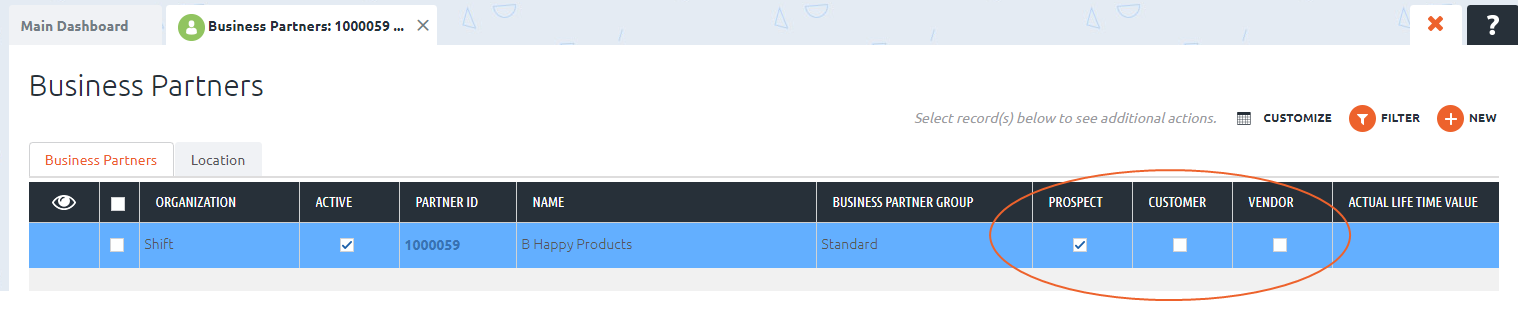
Find the Business Partner (in this case a Prospect) you wish to change. In our example, we will use the Filter button to bring up the search dialog, and enter "happy" in the name field. This will bring up all Business Partners that have the word "happy" in them. Additional info:

In this case, only our sample "B Happy Products" is returned. Note that the box for PROSPECT is currently checked. To make the change, simply select the record, check the CUSTOMER box and un-check the PROSPECT box. Additional info
Navigating to CRM > Customers will now show a Customer record that contains all of the information that was entered into the Prospect during the sales process.